
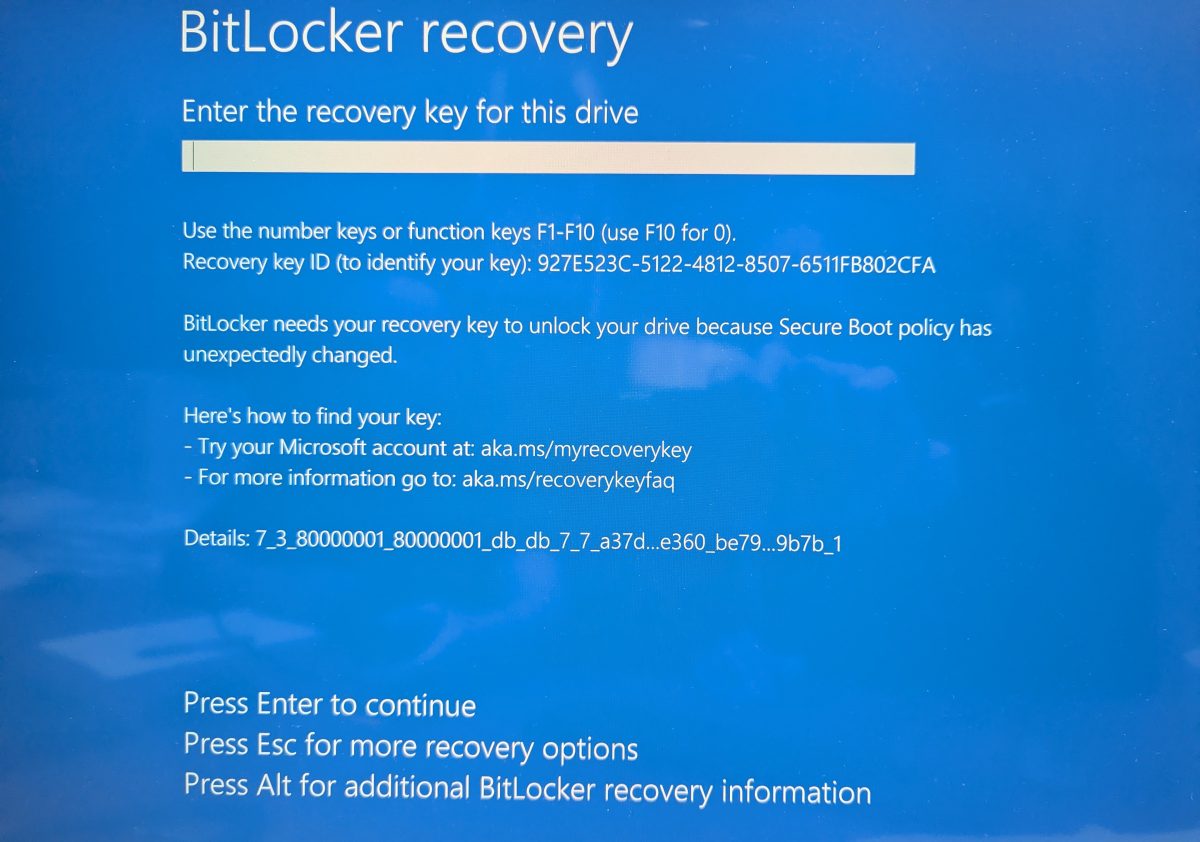
A Windows 11 computer may suddenly start with a blue screen that says:
BitLocker Recovery
Enter the recovery key for this drive.
BitLocker needs your recovery key to unlock your drive.
This message can be scary, especially when the computer was working normally before. In most cases, it does not mean the hard drive is bad. It usually means Windows detected a security or boot change and BitLocker is asking you to prove that you are allowed to access the encrypted drive.
What Is BitLocker?
BitLocker is Microsoft’s drive encryption feature. It protects the data on your computer if the device is lost, stolen, or someone tries to remove the drive and read it from another machine.
When BitLocker is enabled, Windows normally unlocks the drive automatically by using the computer’s TPM security chip. The user does not notice anything during a normal startup.
But if Windows believes something important changed, it may stop the boot process and ask for the 48-digit BitLocker recovery key.
Why Did Windows 11 Ask for the BitLocker Recovery Key?
BitLocker recovery can be triggered by several common events. The most common causes are:
- A Windows update changed boot-related files.
- A BIOS or firmware update was installed.
- BIOS settings were reset or changed.
- Secure Boot was turned off or changed.
- TPM, Intel PTT, or AMD fTPM settings changed.
- The boot order changed.
- The drive was moved to another computer.
- The motherboard or TPM hardware changed.
- The computer lost BIOS settings because of a weak CMOS battery.
BitLocker does this because it cannot always tell the difference between a legitimate change and a possible attack. So it stops and asks for the recovery key.
Do Not Reset or Reinstall Windows Yet
The first rule is simple: do not erase, reset, reinstall, or format the computer unless you already know the data is not needed.
The drive is encrypted. If you wipe the computer, the existing files may be lost. A repair shop cannot simply bypass BitLocker. The safe path is to find the correct recovery key and unlock the drive.
You Need the 48-Digit Recovery Key
The BitLocker screen usually shows a Recovery Key ID. This is not the recovery key itself. It is an identifier that helps you find the correct key.
The real BitLocker recovery key is a long 48-digit number, usually grouped like this:
123456-123456-123456-123456-123456-123456-123456-123456
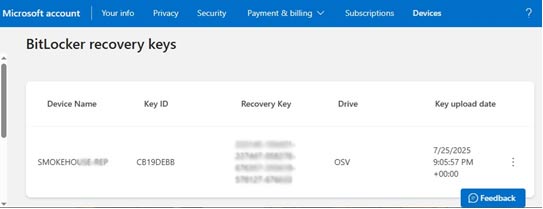
When you search your Microsoft account, business account, printed records, or saved files, match the Recovery Key ID from the screen to the correct 48-digit key.
Where to Find the BitLocker Recovery Key
1. Personal Microsoft Account
If this is a personal Windows 11 computer, the recovery key may be saved in the Microsoft account that was used on the computer.
From another phone or computer, sign in to your Microsoft account and look for BitLocker recovery keys. Check each listed device and match the Recovery Key ID shown on the locked computer.
2. Work or School Account
If the computer belongs to a company, school, or organization, the recovery key may be stored by the administrator. It may be saved in Microsoft Entra ID, Intune, Active Directory, or another management system.
In this case, contact the IT administrator and give them the Recovery Key ID from the screen.
3. Printed Copy, PDF, Text File, or USB Drive
Sometimes the recovery key was saved during setup. Search for:
- Printed BitLocker recovery key pages
- PDF files
- Text files
- USB drives used during setup
- Old setup folders or computer records
Search for phrases like BitLocker Recovery Key, Recovery Key, or the beginning of the Recovery Key ID.
What to Do After You Find the Key
Once you find the matching 48-digit recovery key, enter it on the BitLocker screen. If the key is correct, Windows should continue booting.
After Windows starts, do not ignore the problem. Back up the recovery key again and check why BitLocker recovery was triggered.
Recommended Steps After Windows Boots
Open Command Prompt as Administrator and check BitLocker status:
manage-bde -status
If you plan to work in BIOS, update firmware, or troubleshoot boot settings, suspend BitLocker first:
manage-bde -protectors -disable C:
Restart the computer and complete the changes. When finished, turn BitLocker protection back on:
manage-bde -protectors -enable C:
You can also view BitLocker protectors with:
manage-bde -protectors -get C:
Check These BIOS Settings
If the computer recently had a BIOS update, battery issue, motherboard work, or boot problem, check BIOS settings carefully.
- Boot Mode: usually UEFI, not Legacy or CSM.
- Secure Boot: usually enabled.
- TPM / Intel PTT / AMD fTPM: enabled.
- Boot Order: Windows Boot Manager should usually be first.
- SATA Mode: keep it the same as before, usually AHCI or RAID depending on the system.
Do not randomly change BIOS settings if you are not sure what they were before. Wrong settings can keep BitLocker asking for recovery again.
What If You Cannot Find the Recovery Key?
This is the hardest part. Without the correct 48-digit BitLocker recovery key, the data on the encrypted drive is usually not recoverable.
BitLocker is designed to protect the files from unauthorized access. That means there is no simple back door. If the key cannot be found, the usual option is to wipe the computer and reinstall Windows. That may make the computer usable again, but the old encrypted data will be lost.
Practical Checklist
- Take a clear photo of the BitLocker screen.
- Write down the Recovery Key ID.
- Search the Microsoft account used on the computer.
- If it is a business computer, contact the administrator.
- Look for printed, PDF, text, or USB copies of the recovery key.
- Enter the matching 48-digit key.
- After Windows boots, back up the key again.
- Check BIOS, TPM, Secure Boot, and boot order settings.
- Suspend BitLocker before future BIOS or firmware changes.
Bottom Line
A BitLocker recovery screen on Windows 11 usually means the system detected a security-related change. The computer may still be fine, and the data may still be safe. The correct response is to find the matching 48-digit recovery key, unlock the drive, and then check what changed.
If you have the recovery key, this is usually a manageable problem. If you do not have the key, do not rush into reinstalling Windows unless you are ready to lose the encrypted data.