
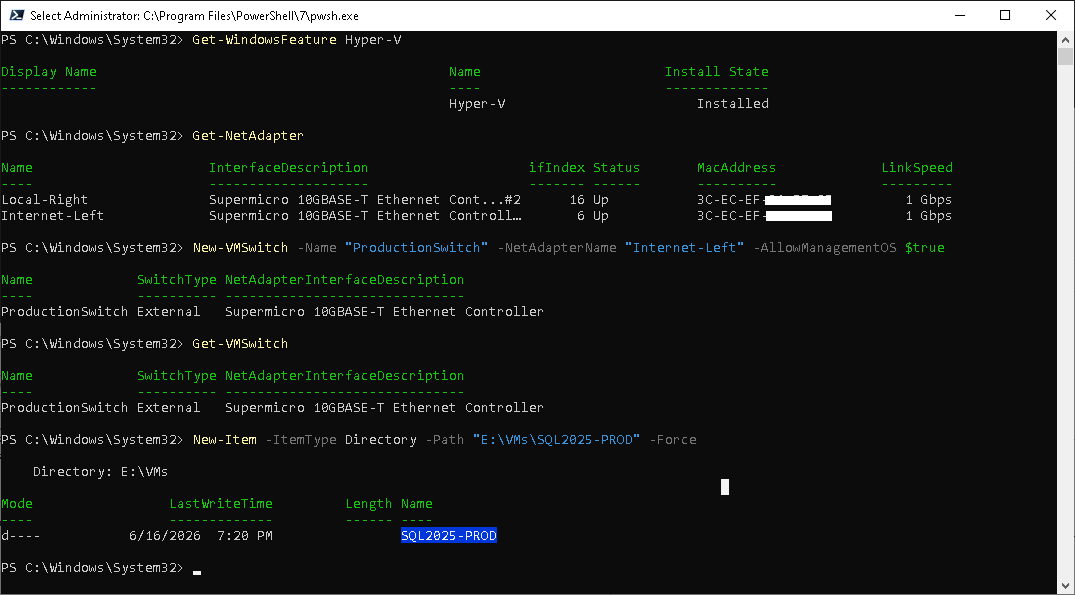
This guide explains how to create a new Windows Server 2025 virtual machine in Microsoft Hyper-V from scratch. It is written for a practical small-business server setup where the physical server acts as the Hyper-V host and the virtual machine will later be used for SQL Server, IIS, testing, or another Windows Server role.
The example below creates a Generation 2 VM named SQL2025-PROD, attaches a Windows Server 2025 ISO file, creates a 150 GB virtual hard drive, connects the VM to an external Hyper-V switch, and starts the Windows installation.
Before You Start
You need a physical Windows Server 2025 machine with the Hyper-V role installed or ready to install. You also need a Windows Server 2025 ISO file saved somewhere on the host server. In this example, the ISO is located here:
C:\VMs\Windows2025.isoFor a test machine, placing VM files on the C: drive is acceptable. For production, it is usually better to keep the host operating system on C: and place virtual machine files on a larger or faster drive, such as D:.
Step 1: Install the Hyper-V Role
Open PowerShell as Administrator and run:
Install-WindowsFeature -Name Hyper-V -IncludeManagementTools -RestartThe server will restart if Hyper-V was not already installed.