
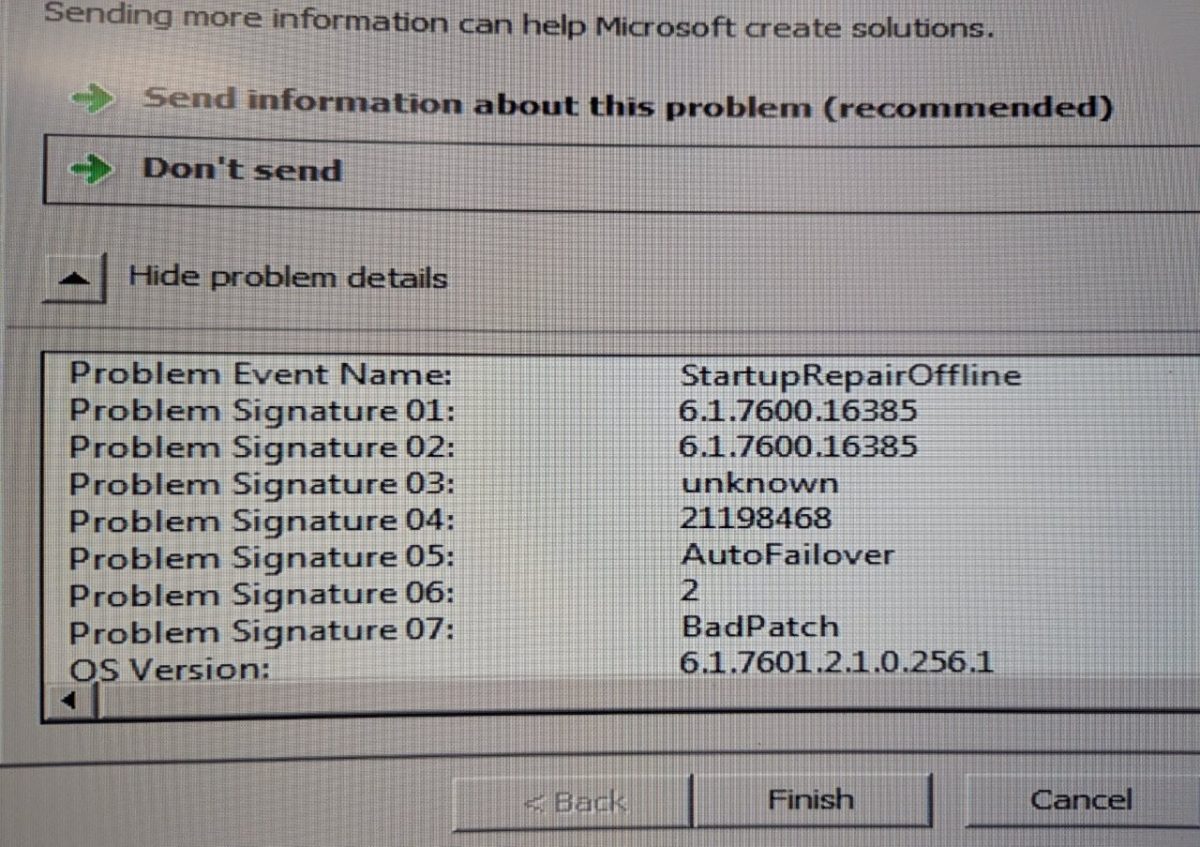
Windows 7 Startup Repair may finish without fixing the system and display problem details similar to the following:
Problem Event Name: StartupRepairOffline
Problem Signature 05: AutoFailover
Problem Signature 07: BadPatch
OS Version: 6.1.7601
This combination indicates that Startup Repair believes an incomplete, damaged, or incompatible Windows update is preventing the operating system from starting.
If the Windows installation was restored from a disk image created on another computer, a storage-controller or SATA-driver problem may also exist. However, the pending update should be reverted first because the repair report specifically identifies BadPatch.
What the Startup Repair Details Mean
- StartupRepairOffline: Windows Recovery Environment attempted to repair an offline Windows installation.
- AutoFailover: Windows automatically entered Startup Repair after a failed boot.
- BadPatch: A Windows update or servicing operation is suspected of blocking startup.
- OS Version 6.1.7601: Windows 7 Service Pack 1.
The report is a diagnosis, not proof that only one problem exists. After reverting the update, the system may still require storage-controller, boot-record, or firmware repairs.
Before Making Changes
Create a backup of the restored disk or virtual disk before modifying boot records, pending-update files, or the offline registry.
The commands below assume that the Windows installation is on drive D: inside the recovery environment. Drive letters often change when booting from a Windows DVD or repair disc, so determine the correct letter first.
1. Open the Windows 7 Recovery Command Prompt
Boot from a Windows 7 installation DVD or compatible repair disc and select:
Repair your computer → Command Prompt
List the available volumes:
diskpart
list volume
exit
Then test likely Windows drive letters:
dir C:\Windows
dir D:\Windows
dir E:\Windows
Use the drive letter that contains the real Windows folder in all subsequent commands.
2. Revert Pending Windows Update Actions
If Windows is on D:, run:
dism /image:D:\ /cleanup-image /revertpendingactionsAllow the command to finish. It can take several minutes. Restart the computer once afterward and test whether Windows starts.
This command tells Windows to roll back servicing actions that were scheduled but not completed successfully.
3. If DISM Fails, Rename pending.xml
A damaged pending-update instruction file can repeatedly force Windows back into Startup Repair.
Return to the recovery Command Prompt and run:
attrib -r -s -h D:\Windows\winsxs\pending.xml
ren D:\Windows\winsxs\pending.xml pending.xml.old
If Windows reports that the file cannot be found, continue to the next step. Not every failed update leaves a pending.xml file.
4. Run an Offline System File Check
Repair protected Windows system files with:
sfc /scannow /offbootdir=D:\ /offwindir=D:\WindowsIf the computer has a separate System Reserved partition mounted as C: and Windows is on D:, use:
sfc /scannow /offbootdir=C:\ /offwindir=D:\WindowsThe scan may take a long time. Do not interrupt it unless it has clearly stopped responding for an extended period.
5. Repair the Windows Boot Records
For a Legacy BIOS and MBR installation, run:
bootrec /fixmbr
bootrec /fixboot
bootrec /scanos
bootrec /rebuildbcd
If bootrec /rebuildbcd finds the Windows installation, press Y to add it to the boot configuration.
Restart the computer and test again.
6. Display the Actual Blue-Screen Error
If Windows still restarts automatically, press F8 before Windows begins loading and select:
Disable automatic restart on system failure
Record the complete stop code. This helps determine whether the failed update has been cleared and a hardware-driver problem remains.
Common Stop Codes
0x0000007B: Storage controller, SATA mode, or storage driver problem0x000000A5: BIOS or ACPI incompatibility0x0000007E: Often an incompatible or missing driver0x00000050: Driver, memory, or corrupted-system-file problem
7. Check the Destination Computer’s SATA Mode
When a Windows 7 disk image is moved to different hardware, the destination computer may use a different storage-controller mode.
Open the BIOS or firmware setup and compare these settings with the original computer:
- AHCI
- IDE or Compatibility mode
- RAID
A mismatch commonly produces stop code 0x0000007B.
Change only one setting at a time and record the original configuration before making changes.
8. Enable Windows 7’s Built-in Storage Drivers Offline
If the system still shows 0x0000007B, the required Windows storage driver may be disabled in the restored installation.
Load the offline SYSTEM registry hive:
reg load HKLM\OfflineSystem D:\Windows\System32\Config\SYSTEM
reg query HKLM\OfflineSystem\Select
Check the value named Current. If it is 0x1, use ControlSet001. If it is 0x2, use ControlSet002.
For ControlSet001, enable the Microsoft AHCI, IDE, and inbox RAID drivers:
reg add HKLM\OfflineSystem\ControlSet001\Services\msahci /v Start /t REG_DWORD /d 0 /f
reg add HKLM\OfflineSystem\ControlSet001\Services\pciide /v Start /t REG_DWORD /d 0 /f
reg add HKLM\OfflineSystem\ControlSet001\Services\iaStorV /v Start /t REG_DWORD /d 0 /f
reg unload HKLM\OfflineSystem
Restart and test the matching BIOS SATA mode.
Recommended Repair Order
- Identify the correct offline Windows drive letter.
- Run
DISM /RevertPendingActions. - Rename
pending.xmlonly if necessary. - Run offline
SFC. - Repair the boot records.
- Disable automatic restart and record any blue-screen code.
- If the stop code is
0x0000007B, correct the SATA mode or storage driver.
Conclusion
The StartupRepairOffline, AutoFailover, and BadPatch signatures strongly suggest that a failed or unfinished Windows update is blocking startup. Reverting pending servicing actions is therefore the first repair to attempt.
On a Windows 7 image restored to different hardware, the failed patch may be only the first problem. Once it is removed, Windows may expose a second issue involving the storage controller, SATA mode, or missing destination-hardware driver.
Windows 7 is no longer supported by Microsoft. After recovering the installation or its data, migration to a supported operating system is strongly recommended.