
When setting up RemoteApp or Remote Desktop Services on Windows Server 2012 R2, you may suddenly lose the ability to connect to the server using Remote Desktop.
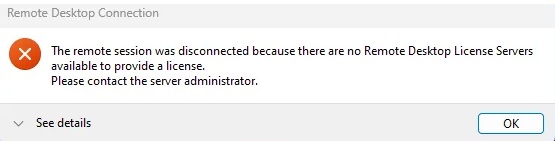
Instead of the normal login screen, you may receive this error:
The remote session was disconnected because there are no Remote Desktop License Servers available to provide a license.
Please contact the server administrator.
This can be confusing, especially if Remote Desktop worked before the Remote Desktop Services role was installed.
The important thing to understand is this:
Administrative Remote Desktop is not the same thing as Remote Desktop Services.
Administrative RDP vs. Remote Desktop Services
By default, a Windows Server allows two simultaneous Remote Desktop connections for administrative purposes.
This is normal server administration access. You can use it to manage the server, install updates, check services, review logs, or make configuration changes.
However, this is different from installing the Remote Desktop Services role.
Once you install Remote Desktop Services, especially the RD Session Host role, the server is no longer just accepting basic administrative RDP sessions. It is now expected to provide remote sessions to users, applications, or RemoteApp clients.
That changes the licensing requirements.
Why the Error Happens
If you install Remote Desktop Services, your users must be licensed using Remote Desktop Services Client Access Licenses, also known as RDS CALs.
You also need a Remote Desktop Licensing server configured and available.
Microsoft provides a licensing grace period when the RD Session Host role is first installed. During this time, you can test the configuration before installing and activating RDS CALs. Microsoft currently documents this grace period as 120 days for RDS deployments. Once the grace period ends, clients need a valid RDS CAL issued by an RD Licensing server before they can sign in to a remote session.
If the licensing server is missing, not activated, unreachable, misconfigured, or the grace period has expired, normal RDP sessions to the RDS host may fail with the license server error.
The Quick Way Back In: Connect Using Admin Mode
If you only need to administer the server, repair the RDS configuration, remove the RDS role, or fix licensing, you can connect using Remote Desktop in admin mode.
From your workstation, open Command Prompt or Run, and use:
mstsc.exe /v:servername /admin
Replace servername with the server name or IP address.
For example:
mstsc.exe /v:192.168.1.50 /admin
or:
mstsc.exe /v:MY-SERVER-01 /admin
This opens a Remote Desktop session for server administration instead of a normal RDS user session.
In many cases, this lets you into the server even when the Remote Desktop Licensing server is broken, not configured, or the RDS grace period has expired.
Another Way to Launch It
You can also open the Run box by pressing:
Windows Key + R
Then type:
mstsc /admin
Click OK, enter the server name, and connect.
[Insert screenshot here: Run box showing mstsc /admin]
What to Check After You Get Back In
Once you are connected in admin mode, check the Remote Desktop Services configuration.
Open Server Manager and review the RDS deployment.
You may need to verify:
- The RD Licensing role is installed
- The RD Licensing server is activated
- RDS CALs are installed
- The RD Session Host can contact the license server
- The correct licensing mode is selected: Per User or Per Device
- The server is not past the licensing grace period
- Group Policy is not pointing the server to the wrong license server
Microsoft notes that RDS licensing issues can occur when the licensing mode is not configured or when the RD Session Host cannot communicate with the RD Licensing server.
If You Do Not Need RemoteApp or RDS
If your original goal was only to remotely administer the server, you may not need the Remote Desktop Services role at all.
For basic administration, Windows Server already allows administrative Remote Desktop connections without installing the full RDS role.
In that case, you can remove the Remote Desktop Services role and continue using the standard two administrative RDP sessions.
Be careful when removing roles from a production server. Make sure you understand what applications, users, or services depend on Remote Desktop Services before making changes.
If You Do Need RemoteApp or Multiple User Sessions
If you are actually deploying RemoteApp or allowing multiple users to connect to the server, then you need to properly license the environment.
That means:
- Install the RD Licensing role.
- Activate the RD Licensing server.
- Install the correct RDS CALs.
- Configure the RD Session Host licensing mode.
- Point the RDS deployment to the correct license server.
- Test user connections again.
The /admin switch is useful for getting back into the server to fix the issue, but it is not a substitute for proper RDS licensing.
Final Notes
This error usually appears after Remote Desktop Services has been installed but licensing has not been fully configured, the grace period has expired, or the RD Session Host cannot reach a valid licensing server.
The key point is:
Use normal RDP for basic administration. Use properly licensed RDS for RemoteApp or multiple user sessions.
If you are locked out because of the licensing error, connect in admin mode:
mstsc.exe /v:servername /admin
Once connected, either fix the Remote Desktop Licensing configuration or remove the RDS roles if they are not actually needed.