
How to fix
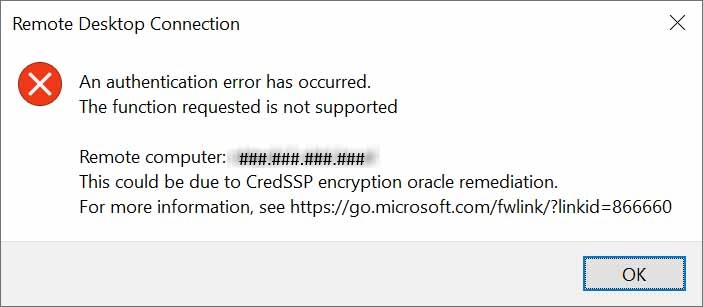
An authentication error has occurred.
The function requested is not supported.
When you are trying to connect to an older Windows Server, especially Windows Server 2012 or 2012 R2, from a newer Windows 10 or Windows 11 computer, you may run into the following Remote Desktop error:
An authentication error has occurred.
The function requested is not supported.
Remote computer:<computer name or IP>
This could be due to CredSSP encryption oracle remediation.
For more information, see https://go.microsoft.com/fwlink/?linkid=866660
I understand how frustrating this can be, especially when the device, VM, or application was working before and suddenly Remote Desktop refuses to connect.
This issue is usually related to CredSSP, which is the Credential Security Support Provider protocol used by Remote Desktop during authentication. Microsoft released updates for CVE-2018-0886 to address a CredSSP vulnerability, and systems with different patch levels or different CredSSP policy settings may fail to negotiate the RDP session correctly. Microsoft documents the CredSSP update behavior and the Encryption Oracle Remediation policy values as part of that security change.
Why This Happens
In many environments, newer Windows 10 or Windows 11 devices are fully patched, while older servers such as Windows Server 2012 may not have the same update level or policy configuration.
When the client and server do not agree on the CredSSP security level, the RDP connection can fail before you ever reach the login screen.
This is why you may see the error even though:
- The server is online
- The username and password are correct
- RDP is enabled
- The firewall is allowing Remote Desktop
- You can ping the server or reach it over the network
The problem is not always basic network connectivity. It is often the authentication negotiation between the RDP client and the remote Windows server.
The Registry Workaround
When this error first appeared some time ago, one workaround that helped in many cases was changing the local CredSSP Encryption Oracle Remediation setting through the registry.
The registry value is:
Windows Registry Editor Version 5.00

[HKEY_LOCAL_MACHINE\SOFTWARE\Microsoft\Windows\CurrentVersion\Policies\System\CredSSP\Parameters]

"AllowEncryptionOracle"=dword:00000002
You can copy the lines above into Notepad, save the file with a .reg extension, and run it on the affected machine. For example, you could save it as:
CredSSP-Fix.reg
Then right-click the file and choose Run as administrator.
After importing the registry file, try the RDP connection again and see whether the error goes away.
Important: Where Should You Apply This?
In most cases, this workaround is applied on the computer you are connecting from — the Windows 10 or Windows 11 client machine.
However, depending on the environment, patch level, and policy configuration, you may also need to review the setting on the remote server.
If you are working with a VM and you still have console access through Hyper-V, VMware, Azure Serial Console, iDRAC, iLO, or another management console, you can also check the setting directly on the server.
Manual Registry Method
You can also create the registry value manually.
Open Registry Editor as administrator and navigate to:
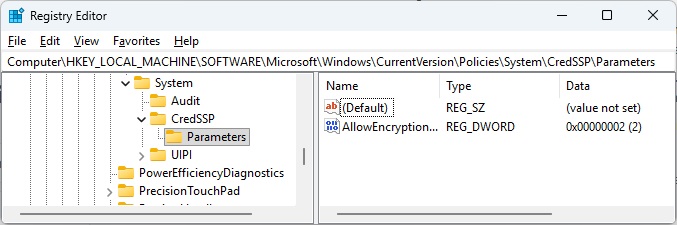
HKEY_LOCAL_MACHINE\SOFTWARE\Microsoft\Windows\CurrentVersion\Policies\System\CredSSP\Parameters
In some cases, the CredSSP key or the Parameters key may not exist. That is normal. You can create the missing keys manually.
The full path should look like this:
HKEY_LOCAL_MACHINE
 └── SOFTWARE
     └── Microsoft
         └── Windows
             └── CurrentVersion
                 └── Policies
                     └── System
                         └── CredSSP
                             └── Parameters
Inside the Parameters key, create a new DWORD (32-bit) Value named:
AllowEncryptionOracle
Set its value to:
2
Make sure the value is entered as a DWORD.
[Insert screenshot here: Registry Editor showing the CredSSP\Parameters key and AllowEncryptionOracle value set to 2]
After the value is created, close Registry Editor and test the RDP connection again.
What the Value Means
The value AllowEncryptionOracle=2 corresponds to the Vulnerable setting for Encryption Oracle Remediation. Microsoft describes this setting as allowing CredSSP clients to fall back to less secure behavior, which can expose the remote server to risk.
Because of that, this should be treated as a workaround, not the preferred permanent fix.
Recommended Long-Term Fix
The better long-term solution is to fully patch both sides of the RDP connection:
- Install current Windows updates on the Windows 10 or Windows 11 client.
- Install current Windows updates on the Windows Server 2012 or 2012 R2 machine.
- Reboot both systems if required.
- Remove or change the temporary registry workaround after the server has been updated.
- Test RDP again.
Once both systems support the updated CredSSP behavior, you should not need to leave the client in the less secure compatibility mode.
Group Policy Alternative
The same setting can also be configured through Local Group Policy on editions of Windows that include the Group Policy Editor.
Open:
gpedit.msc
Then go to:
Computer Configuration
 > Administrative Templates
 > System
 > Credentials Delegation
 > Encryption Oracle Remediation
Set the policy to Enabled, then choose the appropriate protection level.
For a temporary compatibility workaround, some administrators set it to Vulnerable, which corresponds to registry value 2.
Again, this is not recommended as a permanent setting. Use it only long enough to regain access and properly update the affected server.
Final Notes
This registry workaround can be useful when you urgently need to regain RDP access to an older Windows Server 2012 system from a newer Windows 10 or Windows 11 machine.
However, because the AllowEncryptionOracle=2 setting lowers CredSSP protection, it should be used carefully and temporarily. The best practice is to update the older server and client systems so they can authenticate securely without requiring the workaround.
If you are supporting production servers, always document the change, apply it only where needed, and remove it once the underlying patching issue is resolved.